
Setup guide
How to Install IPTV on Your Firestick in 5 Minutes
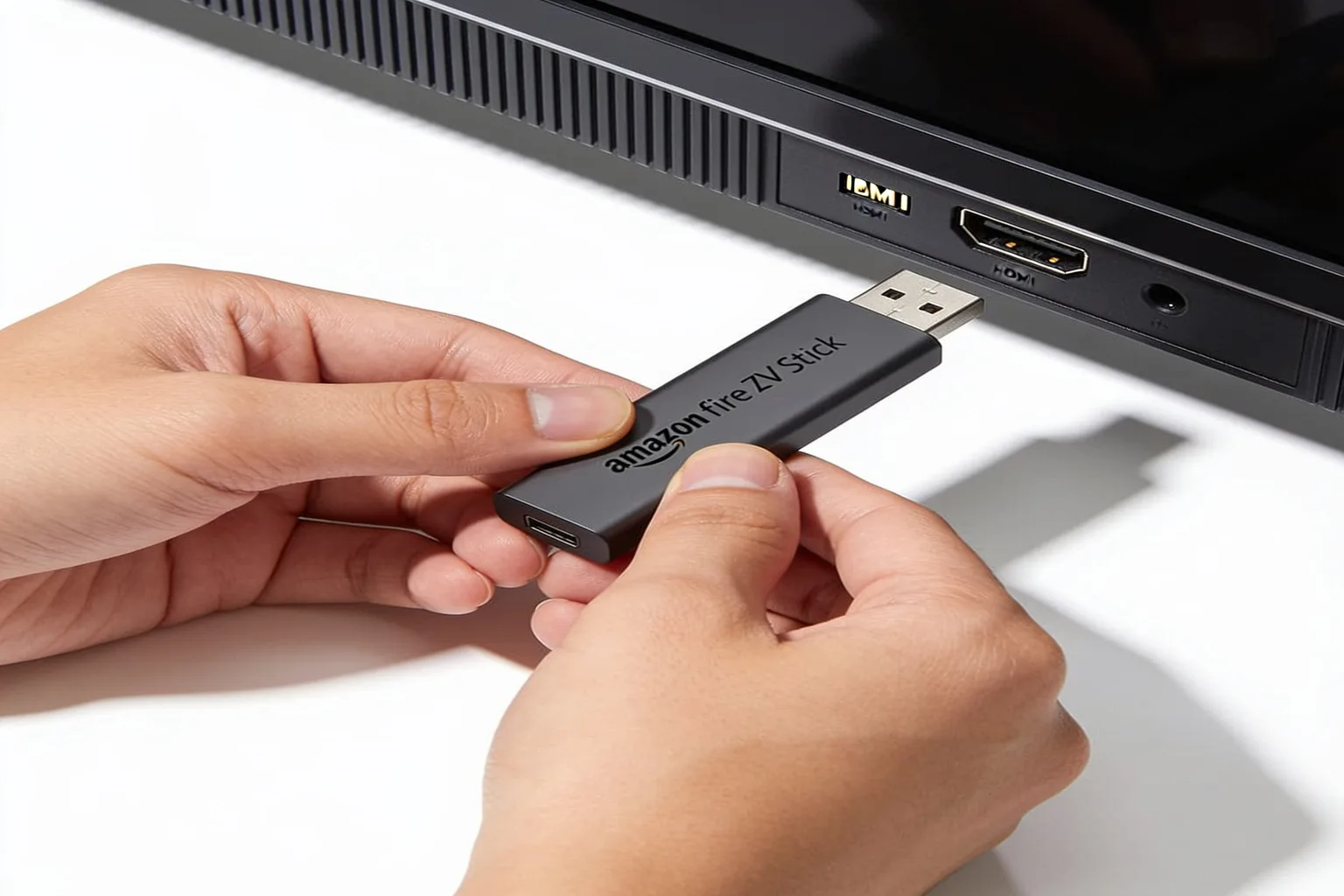
No tech skills required — every step is shown with a screenshot. Follow the six-step Firestick walkthrough below, then jump to the section for your other devices if you also want to watch on a phone, Smart TV, or PC.
Note: No tech skills required — every step is shown with a screenshot.
Firestick walkthrough
Six steps from box to live channels
This is the canonical path for Amazon Firestick (4K, Max, Lite, or standard). Each step includes a screenshot of the exact screen you will see on your TV.
-
1. Enable unknown app installs
From the Firestick home screen, go to Settings → My Fire TV → Developer Options. Turn on Install unknown apps for the Downloader app. This lets you sideload the IPTV player safely.
-
2. Install the Downloader app
Go back to the home screen and select the Find / Search icon. Type Downloader and install the official Downloader app by AFTVnews from the Amazon Appstore. It is free.
-
3. Enter your short activation code
Open Downloader. In the URL bar, enter the short code we email you after purchase (for example
1234567). Or type the full URL from your activation email. Press Go to download the IPTV Smarters install file. -
4. Install IPTV Smarters
The IPTV Smarters app downloads automatically (a few megabytes). When the Firestick prompts you, tap Install. Then choose Open or return to your apps list to launch it.
-
5. Log in with Xtream Codes API
Open IPTV Smarters and choose Login with Xtream Codes API. Enter the username, password, and server URL exactly as shown in your activation email. Triple-check for typos — this is the most common setup mistake.
-
6. Wait for the channel list to load
Wait about 30 seconds for the full channel list, VOD library, and EPG (TV guide) to populate. You will see categories like Live, Movies, and Series. You are done — pick a channel and start watching.
Other devices
Watch on every screen you own
Your subscription works on more than just the Firestick. Pick your device below for a short setup path. Stuck on any step? Contact support and we will walk you through it.
Android TV & Android phone
- Open the Google Play Store on your TV or phone and search for IPTV Smarters Pro.
- Install the app and open it. Tap Login with Xtream Codes API.
- Enter the username, password, and server URL from your activation email.
- Wait 30 seconds for the channel list to load and start watching.
Samsung & LG Smart TV (Tizen / WebOS)
- Samsung: open the Smart Hub / Apps store and search for IPTV Smarters. LG: search the LG Content Store.
- Install and launch the app. If it is not listed on your region store, set the TV app store region to United States or United Kingdom and retry.
- Choose Xtream Codes API and enter your activation email credentials.
- Let the EPG and channel list load, then start watching.
iPhone & iPad
- Open the Apple App Store and search for IPTV Smarters (look for the official listing by WhmSoft).
- Install and open the app. Tap Login with Xtream Codes API.
- Enter the username, password, and server URL from your activation email.
- Allow the channel list to load, then pick Live, Movies, or Series.
Windows PC
- Option A — native player: download IPTV Smarters for Windows from the official site and log in with Xtream Codes API.
- Option B — emulator: install BlueStacks, then install the Android IPTV Smarters APK inside it.
- Enter the username, password, and server URL from your activation email in either app.
- Wait for the channel list to load and start watching on your desktop or laptop.
MAG box
- On your MAG box home screen, go to Settings → System Settings → Servers → Portals.
- Set Portal 1 URL to the provider portal URL we send in your activation email.
- Name the portal (for example firestickiptvs) and save. Reboot the box when prompted.
- The portal loads after restart and you can browse live channels, VOD, and the EPG.
Prefer a different player?
- Your subscription includes an M3U playlist URL and Xtream Codes credentials — both work in TiviMate, Smarters, IBO Player, XCIPTV, and more.
- Install your preferred player, then log in with the same activation email credentials.
- Use the Xtream Codes API option whenever the player supports it — it keeps the EPG and VOD library in sync.
If you get stuck
Three common issues, fixed in seconds
Most setup problems come down to one of these three things. If your issue is not listed here, see the full FAQ or contact support.
The app will not install
This almost always means Install unknown apps is still turned off. On the Firestick go to Settings → My Fire TV → Developer Options → Install unknown apps, and enable it for Downloader. Then retry the install. On Android TV, enable Unknown sources for the browser you used to download the APK.
Login fails with an error
The most common cause is a typo in the Xtream credentials. Open your activation email and copy the username, password, and server URL directly instead of typing them. Check there are no trailing spaces, and that the server URL starts with http:// or https://. If you still get an error, your subscription may not be active yet — contact support with your order number.
Channels will not load
If the login succeeds but no channels appear, or you get a blank list, the issue is usually the server region assigned to your account. We run multiple regional servers for the best latency. Contact support and we will switch you to the closest region and confirm your line is active. Anti-Freeze mode in IPTV Smarters settings can also help with buffering.
After setup
Make it yours in three quick tweaks
Once channels are loaded, these three customizations take about two minutes and make a big difference to your day-to-day viewing.
Customize the EPG
Open IPTV Smarters settings and set the EPG update interval to Every 24 hours. This keeps the TV guide current without slowing down app startup. You can also choose how many days of guide data to display.
Set up favorites
Open any channel, press and hold (or the menu button on the Firestick remote), and select Add to Favorites. Build a short list of your go-to channels so you do not have to scroll through 24,000+ every time.
Enable Anti-Freeze mode
In IPTV Smarters settings, turn on Anti-Freeze. This smooths out short network hiccups so streams keep playing through brief latency spikes. Pair it with a wired Ethernet adapter on the Firestick for the most stable picture.
Get your activation code
Buy a plan to get your activation code today.
Every plan ships instantly with an activation email containing your Xtream credentials and short Downloader code. Prefer to test first? Start a free trial and run the full setup before you pay.